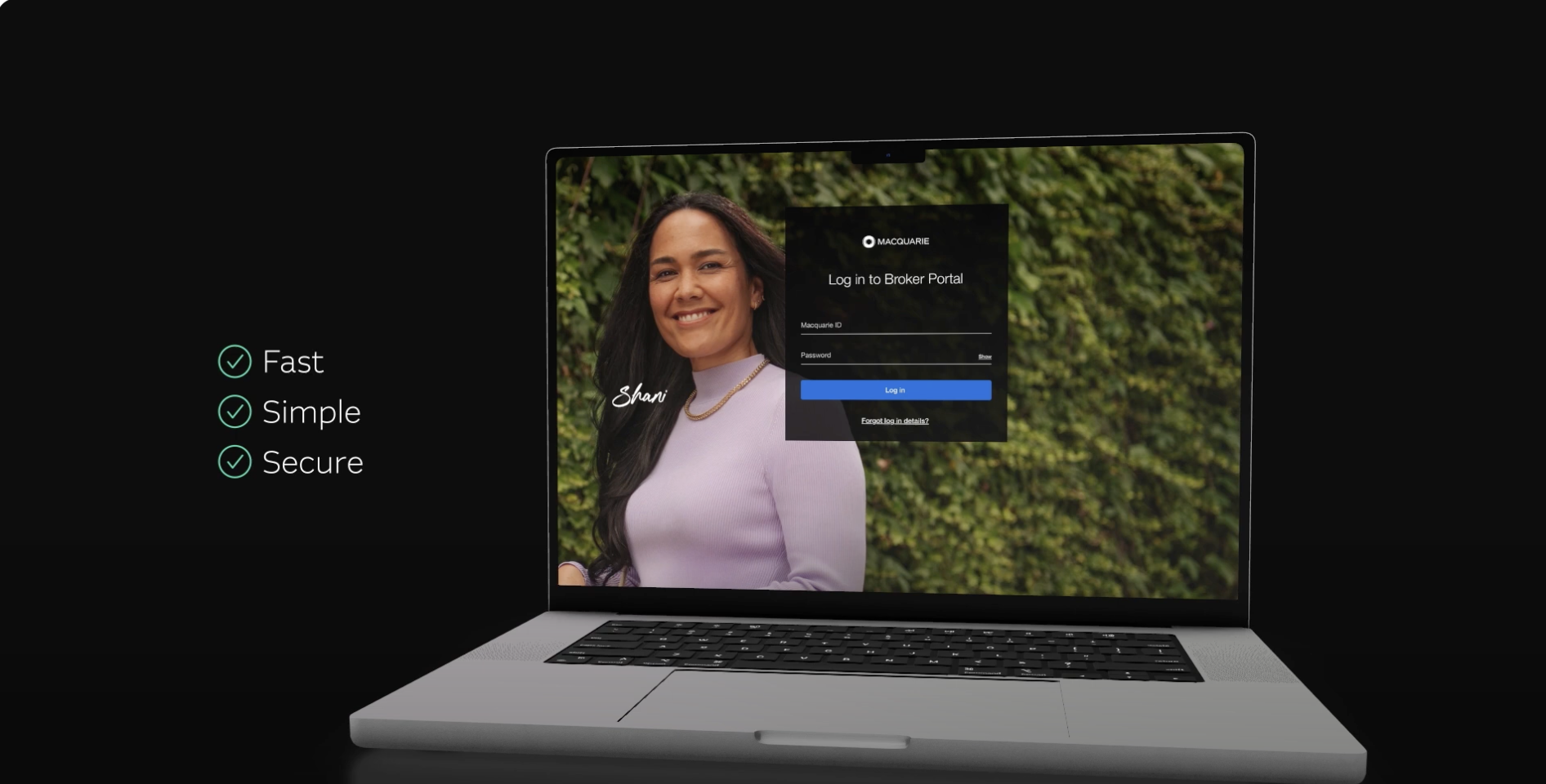
When do I need to provide additional documents and comments in Broker Portal?

After submitting an application for your customer, you may need to provide additional information and documents for us to assess the application. If this is the case, we’ll send a back channel message (BCM) outlining what we need to progress the application. You’ll need to upload these documents and comments to your customer’s application via Broker Portal.

Uploading documents and comments in Broker Portal is available as part of our credit assessment process. Once the application is formally approved, any documents required for settlement will be managed by:

What documents and information are required in Broker Portal?

We’ll provide a list of documents and information required via a back channel message (BCM), as well as in the Broker Portal. You or your registered support staff should follow these steps to submit the requested information:

  1. Log in to Broker Portal
  2. Select View all your applications located in Your Application section
  3. Select the application from the list (e.g. APP-123456)
  4. Review the Requested information.

How do I submit documents in Broker Portal?

Navigate to your application list in Broker Portal and select the application you’re working on. Once selected, any outstanding documents and clarification requests will be listed under Requested information.

Watch the video and follow the instructions below to see how to provide all requested information. Please note, all requests will need to be uploaded to be able to submit the application to us for assessment.

  1. Select the type of request from the Requested information list e.g. ‘Income – Payslip’ or ‘Living expenses’
  2. Once selected, we’ll outline what information is required and why it’s required
    • For document requests, either ‘drag and drop’ the document or select browse files to select the document from your drive. Click Upload.
    • For clarification requests, provide commentary in the text box for each request. Click Save Comment.
  3. A green tick will appear as you complete each request. Continue to complete the steps for other outstanding requests.
  4. Once all have been uploaded, click Submit for assessment. You’ll only be able to do this once all requests have been uploaded.
     

How do I request an exception if I don’t have all documents?

Generally, most documents and clarification responses are to progress your application. You’ll need to provide these before you can select Submit for assessment and move forward.

However, for certain document types, you can request an exception directly in the portal. If the exception is available for a specific document, you will see a checkbox next to it. Tick this box and enter a valid reason why you cannot provide the document. 

Can Macquarie see the information I’ve uploaded on Broker Portal?

Our team will only see documents and comments you have provided once all information has been submitted. To do this, you need to respond to all queries we’ve requested via Broker Portal and select Submit for assessment.

What document formats can be uploaded to Broker Portal?

The Broker Portal supports documents under 50MB and in the following file formats:

  • PDF, IMG, PNG, JPG, BMP, TIFF

Please note, Microsoft Excel (e.g. XLS, XLSX) or password protected files aren’t supported.

Who can upload documents and provide comments in Broker Portal?

You and your registered support staff can upload documents and provide clarification to requested information. This enables you and your team to continue to work on applications simultaneously.

Can I view, edit or download documents and comments from Broker Portal?

If you need to make edits to the documents or comments before submitting for assessment, please delete the file and resubmit the document or comment.

In Document History, anyone with access to the application can view a list of previously submitted documents and comments for the application. This read-only view includes the file name, document category, description, received date and time and the uploader's name.

You will not be able to view the contents of a document or download, modify or re-upload files from this view.

Why won’t my document or comment upload in Broker Portal?

As a first step, refresh the page to check if the document or comment has been uploaded. If you and a team member are working simultaneously on an application, once you’ve refreshed, the most recent files should be uploaded.

If you receive an error message when attempting to upload a document, you’ll need to delete the file and take the following actions:

Error messageAction
File size exceeds 50MBYour file is too large. You’ll need to either compress the file or only send the relevant document we require.
File type is not supportedRe-upload the file in an accepted format
File name has special charactersRe-save the file and remove all special characteristics e.g. ‘$’’#’.
File upload disrupted

Delete and try to attach the file again.

We’ve detected an issue with the fileThe file may be corrupted. Please check and re-upload the file to try again.

Why did I lose some of the documents and notes I’d completed?

This may occur if our team resends a BCM with a request to provide additional documents or queries to what was initially requested. If this BCM has been sent before the prior request has been ‘Sent to assessment’, the list will be refreshed. This may result in some documents or comments being removed.

If this occurs, please re-upload the documents to ensure all requests are completed and the application can be sent for assessment.

Log in to Broker Portal

Track your applications, view our processing times and easily access your existing customer's loan details, all within Macquarie Broker Portal.

Search Broker Help Centre

Find answers faster to your everyday queries with Broker Help Centre. Search by keywords or by category to find exactly what you need, when you need it.

Meet the team

Our BDM team provides you and your customers with world-class service and the support you need throughout the home loan journey. Get to know the BDMs in your state today.