What are Adviser Initiated Payments (AIPs)?

Adviser Initiated Payments (AIPs) make it quick and easy for you to make one-off or scheduled (recurring) payments from your client’s cash account on their behalf.

AIPs are available for a number of different payment types including:

  • PayAnyone payments, available to any account in Australia with a transaction limit of $500,000 per day (there’s no daily limit on transfers between a CMA and a linked Accelerator account).
  • BPAY® payments (subject to BPAY biller code limits).

For more information see Understanding daily limits on payments and transfers in Personal Help Centre.
When can I use AIPs?

AIPs are available for clients with signing instructions of 'Sole authorisation’ or ‘Dual authorisation’. All client authorisations must be made using the Macquarie Authenticator app. There may be certain scenarios where you can’t use AIPs in Adviser Online, see Understanding requests that can’t be completed digitally.

Note: Scheduled payments can’t be set up from an Accelerator account. However, you can set up scheduled payments from the linked CMA.

How do I make an AIP from the cash account?

  1. Log in to Adviser Online
  2. Search for the client or account you want to make the payment from in the global account search bar
  3. Choose the account
  4. Select Make a payment
  5. The Make a payment screen will open. You can choose to make a payment to a saved payee or biller, another client account, or add a new payee or biller
  6. Select the account or biller you’re paying to. If you’re making a payment from an Accelerator account OR a Macquarie Vision Savings account, then the linked CMA or Macquarie Vision Cash account will be automatically selected.
  7. Enter the amount to transfer and, if you’d like, a description to appear on your client's or the recipient’s statement
  8. If applicable, enter the EFT code or Customer Reference Number (CRN) associated with the payment
  9. Select when you’d like the payment to occur: Now, Later, or Recurring payment
  10. For a Recurring payment, select how often the payment should occur and an end date, if applicable. Please note:
    • you can't continue a recurring BPAY payment for more than 12 months
    • for monthly and quarterly recurring payments, you can select a non-processing day (weekends and national public holidays) as the start date. Payments that fall on non-processing days will be deducted from your client's account on the banking day before the due date.
  11. Review the details of the payment and select Next.

How do I select which client(s) will authorise the AIP?

If the payment requires authorisation, follow the AIP steps above and then: 

  1. Once you’ve entered the details of the payment, and selected Next, you’ll need to select the payment authorisers. You’ll be able to select either one sole authoriser or two dual authorisers to approve the payment.
  2. Under Authorisation method, you'll see the method your client must use to authorise the payment.
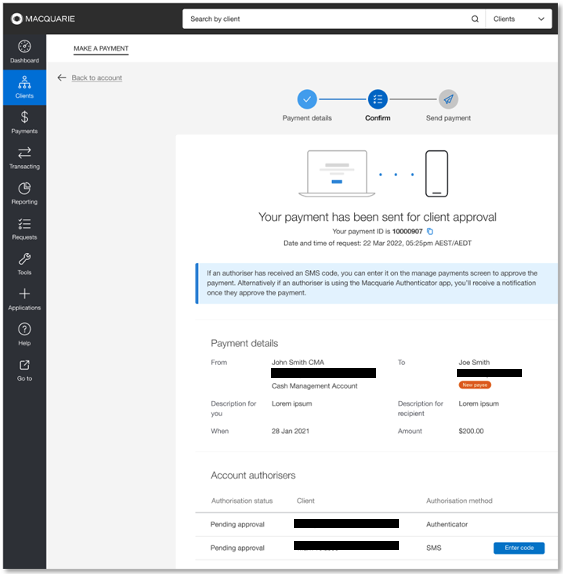
  3. Select Send authorisation. The authoriser(s) selected as approvers of the payment will receive a push notification on their mobile device.

Can I make AIPs from an Accelerator account?

You can make AIPs from an Accelerator account to a linked CMA, but not to other accounts. One-off scheduled payments and recurring payments can’t be set up from the Accelerator account. However, you can set up these payments from the linked CMA.

How does my client authorise an AIP?

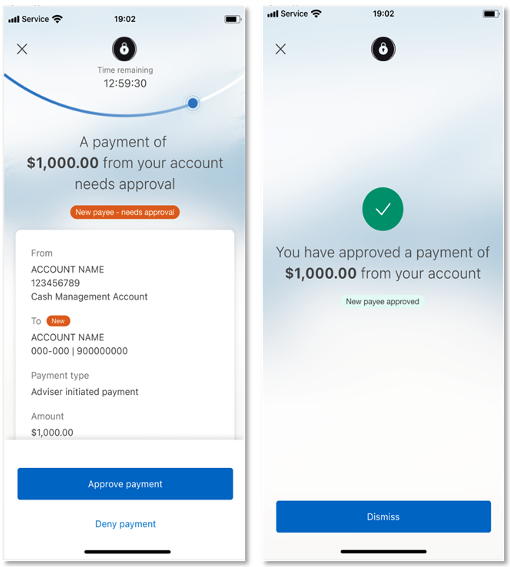
  1. If your client has registered for the Macquarie Authenticator app, they’ll receive a push notification on their mobile device to approve or deny the payment. Your client will generally have up to 24 hours to do this, depending on the type of payment. See How long does my client have to authorise an AIP?
  2. Once your client(s) approve the push notification, the payment will be authorised. The payment will appear in ‘Manage payments’ as ‘Complete’, and the adviser who initiated the payment will receive a notification in Adviser Online advising that the payment has been authorised.

If a client denies the push notification, the payment won’t be authorised. The payment will appear in ‘Manage payments’ as ‘Denied’, and the adviser who initiated the payment will receive a notification in Adviser Online advising that the payment has been denied.

How long does my client have to authorise an AIP?

The time your client(s) have to approve a payment depends on the type of payment, as shown in the following table.


Payment type

Payment date

Initial notification expiry window

Re-sent notification expiry window

Now (immediate)

N/A

24 hours

24 hours

Later or recurring

2 or more business days away

24 hours

Shortest out of:

  • 24 hours, or
  • time left until cut-off

Later or recurring

1 business day away

Time left until cut-off

Time left until cut-off


Now (immediate) payments

  • Your client has 24 hours from when you send the push notification before it expires
  • If the push notification expires, you can resend it via ‘Manage payments’ as many times as needed. Each resent push notification will last another 24 hours.
  • There’s no authorisation cut-off restriction for immediate payments.

Later or recurring payments

  • Your client needs to approve the payment by 10:00pm Sydney time on the business day before the payment is due. The system will automatically calculate this deadline for you.
  • The approval notification lasts up to 24 hours, but it can be shorter if the payment is scheduled soon. For example, if you set up a payment on Monday for a payment to be made on Tuesday, your client has until 10:00pm Monday to approve, which is about 13 hours, but if the payment is scheduled for Wednesday, your client gets the full 24 hours.
  • If your client doesn’t approve the payment by the deadline, both the notification and the payment will expire. You’ll need to create a new payment.
  • You can view your client’s payment authorisation deadline in the Authenticator tile under ‘Manage payments’. Your client can also check the remaining time in their Authenticator app. If the deadline is today, alerts will appear throughout the AIP wizard and under ‘Manage payments’.
  • To give your client the full 24 hours to approve, set up payments at least two business days before the payment date.

How do I resend the authorisation notification to the client?

If the push notification expires while the payment is still ‘Pending approval’, you can resend it in ‘Manage payments’ by selecting the payment, then clicking Resend notification.

The new notification will last for either 24 hours or until the deadline, whichever is shorter. If the payment is complete, cancelled, denied or expired, you won’t be able to send another notification.

How long after client authorisation is the payment received?

When does an AIP not require client authorisation?

If you have Accelerator Account Transfer Authority, you’ll be able to create a payment between linked accounts without client authorisation. Linked accounts include:

  • CMA to Accelerator accounts (Note: When a client opens an Accelerator account through their adviser, the adviser is automatically provided Accelerator Account Transfer Authority on the account)
  • Macquarie Vision Savings to Macquarie Vision Cash.

Why can’t I initiate an AIP for my client?

There may be certain scenarios where you can’t use AIPs in Adviser Online, see Understanding requests that can’t be completed digitally.

Beyond these scenarios, you won’t be able to initiate an AIP for your client (you’ll receive a notification ‘Payment can’t be made from this account’) if:

  • the minimum number of approvers haven’t completed the Macquarie Authenticator registration (including enabling push notifications and, if they’re on an older version of the app, completing the training simulation) which is required for AIP authorisation. Simply ask your client to:​
    • open the Authenticator app and select Enable notifications to turn on push notifications, or
    • if your client is on an older version of the Macquarie Authenticator app, select the menu, then Help & support, then Training simulator. This will simulate a sample push notification and approval request identical to the one your client will receive in Authenticator (completing the simulation takes less than 30 seconds).
  • the account needs more than two approvers (AIPs are only available for accounts with sole or dual authorisation)
  • the account has exceeded daily pay limits:
    • PayAnyone payments exceeding $500,000 processed in the same business day won’t be accepted
    • BPAY® billers have payment limits that aren’t included in the PayAnyone limit, so you can still make BPAY payments if you’ve reached the PayAnyone limit provided you don’t exceed the BPAY biller’s limit. Check with the biller to find out if limits apply.
  • your client’s Macquarie ID is currently locked due to fraud or other risk concerns
  • your client doesn’t have a mobile number on file with us.

How do I initiate a payment now but save it for client approval later?

AIPs don’t need to be approved by your client(s) immediately. To save a payment to be sent to your client(s) for approval later, follow the instruction for an AIP, then:

  1. Once you’ve entered the details of the payment, and selected Next, you’ll need to select the authoriser/s to send the push notification to
  2. Select Save payment. The payment will be saved, and you’ll be provided with a payment ID. The authoriser(s) selected won't receive a push notification until you send the payment for authorisation. You can view saved payments in 'Manage payments'.

How do I find a saved payment and request client authorisation for it?

For saved payments, you can send the authorisation to your client at the appropriate time:

  1. Log in to Adviser Online
  2. Select Payments, then Manage payments
  3. Filter by status: saved — send approval
    • Alternatively, enter the payment ID into Payment search or select the payment from the list    
  4. Click anywhere on the payment row to expand the row
  5. In the authorisation tile(s) presented, select Send authorisation. Your client must be registered for Macquarie Authenticator to receive a push notification to authorise the payment. For dual authorisation, you must select Send authorisation in each tile.

The push notification sent to your client is valid for up to 24 hours. If the push notification expires you can easily generate a new one by selecting Resend notification.

Once the payment has been successfully authorised, the status of the payment will be updated to ‘Complete’.

What confirmation will my client receive after they’ve authorised a payment?

The client will receive a push notification from the Macquarie Mobile Banking app once the payment has been debited from their account (if they have notifications enabled).

Clients that don’t have the Macquarie Mobile Banking app will receive an SMS. Please be aware that the delivery of SMS notifications to your clients with international mobile numbers is not guaranteed. To ensure they receive all communications, we suggest asking your clients to provide an Australian mobile number.

How do I check the status of a payment?

  1. Log in to Adviser Online
  2. From the side navigation hover over Payments and select Manage payments
  3. Search for the payment
  4. Click anywhere on the payment row to expand the row
  5. You can see completed actions and any outstanding actions:
    • Pending approval: Authorisation has been sent to the authoriser/s but your client needs to approve the payment via Macquarie Authenticator
    • Saved – send approval: The payment has been saved but the authorisation still needs to be sent to the authoriser/s
    • Approved – not submitted: An approval has been completed but there has been an issue submitting the payment. Payments in this status still need to be submitted for processing by clicking the Submit button.
    • Denied: Indicates that an authoriser has denied the payment in their Macquarie Authenticator app
    • Complete: The authorisation process has been completed successfully
    • Cancelled: The payment has been cancelled
    • Expired: A future-dated or recurring payment that wasn’t authorised before the start date. Expired payments can no longer be authorised but can be cancelled.
  6. Click anywhere on the row to collapse the row.

How do I amend a payment?

You can’t amend the details of a payment in Adviser Online. If changes need to be made, you’ll need to cancel the payment entirely and create a new one using AIPs in Adviser Online with client authorisation.

How do I stop/cancel a payment?

You can cancel any payment that hasn’t been fully approved via the ‘Manage payments’ screen in Adviser Online. Please note:

  • One-off payments (‘Now’) that have been fully approved can’t be stopped or cancelled
  • Future-dated payments (‘Later’) that have been fully approved can only be cancelled if the future payment date hasn’t been reached
  • Scheduled payments (‘Recurring’) that have been fully approved can be cancelled. However, if the payment includes an end date, the payment can only be cancelled if the end date hasn’t been reached.

The list of payments on the ‘Manage payments’ page is automatically filtered by payments that are pending approval and approved – not submitted. Cancelling a scheduled/recurring payment doesn’t impact any payments that have already been processed.

Additionally, you can cancel a scheduled payment in Adviser Online by navigating to the ‘Scheduled payments’ page within a cash account:

  1. Log in to Adviser Online
  2. Search for the account the payment is coming from in the global search bar
  3. Choose the account
  4. Select the Payments sub navigation option
  5. Select the Scheduled payments tab
  6. Click Actions menu on the payment row
  7. Select Cancel payment
  8. Select Yes, cancel.

How do I recall a payment?

If the recipient is known to your client, the quickest and easiest option would be to request they transfer the funds back.

If this is not possible, contact us via chat in Adviser Online to discuss a payment recall.

What happens if the client denies the AIP via Macquarie Authenticator?

You’ll be notified in Adviser Online (via the ‘bell’ icon) and the status on the ‘Manage payments’ screen will appear as ‘Denied’.

How do I add new payees or billers?

There are two features on Adviser Online that make it easier to manage your client’s payees and biller information:

Payments tab

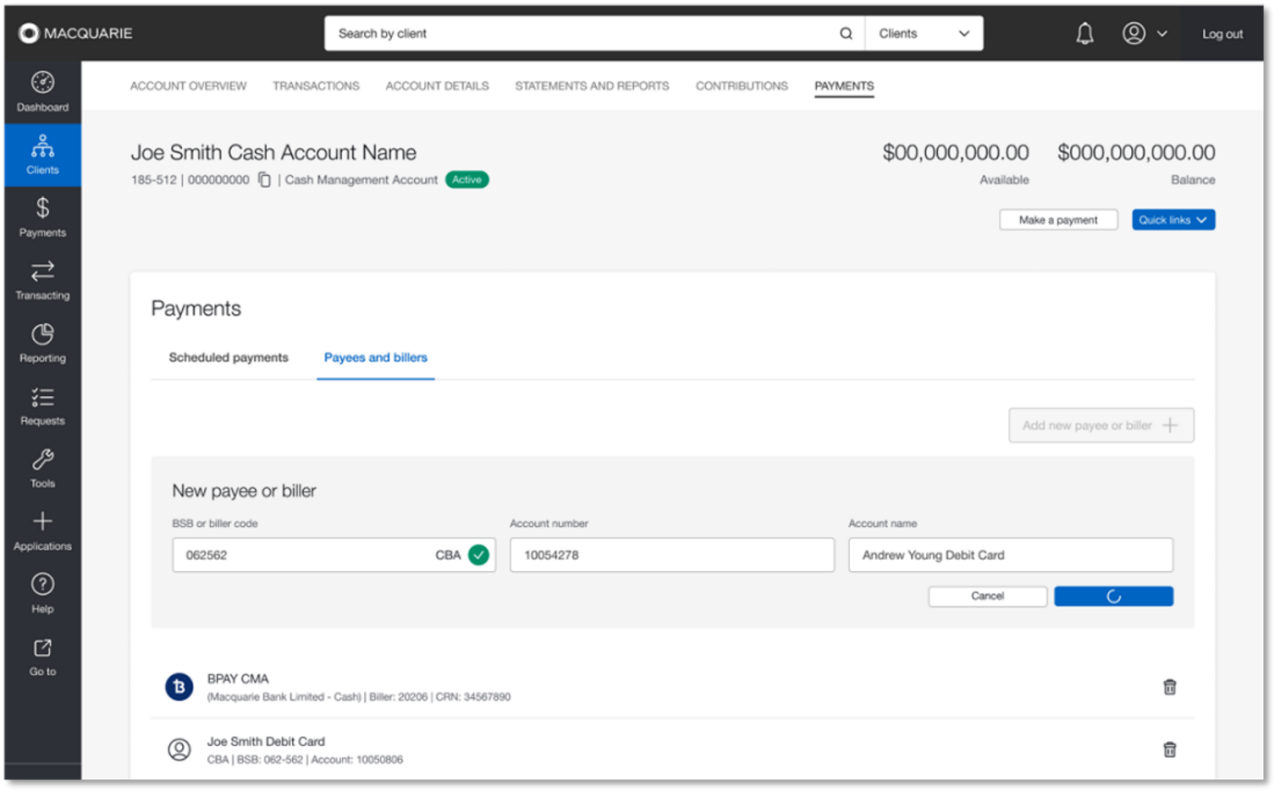
In Adviser Online, the ‘Payments’tab allows you and your support staff to add or remove ‘Payees and Billers’ for cash transactions and review upcoming ‘Scheduled Payments’. You can add and delete payees and billers from this screen. 

Note: Payees and billers maintained in Adviser Online will be distinct from any payees or billers created by your clients through online banking. Payees and billers in Adviser Online are saved at the account level so you can see any payees and billers associated with the account.
 

Make a payment screen

An icon will appear next to any payee or biller being transferred to for the first time in Adviser Online, further prompting the Macquarie Authenticator review and approval screens. 

Once the payment is initiated, a disclaimer on the ‘Manage payments’ screen will indicate if the recipient is a new payee or biller. 

Following approval, the icon won’t appear in any following payments made to the payee or biller. 


® Registered to BPAY Pty Ltd ABN 69 079 137 518

Chat to us on Adviser Online

You can start a new chat with us and leave a message at any time. Consultants are available to chat Monday to Friday, 8am to 7pm Sydney time (excluding public holidays).

Resolve a complaint

Everyone at Macquarie is commited to providing our clients with the highest standard of products and services available. If you have feedback we would like you to tell us about it. 

Talk to us today

To speak to a specialist complete this form and we'll be in touch.